
Add a client to Backseat
Backseat sends a client friendly emails for months, on a schedule you pick. Here is how to add one.
Before you start
- The client's name and email.
Steps
- 1
Open Backseat
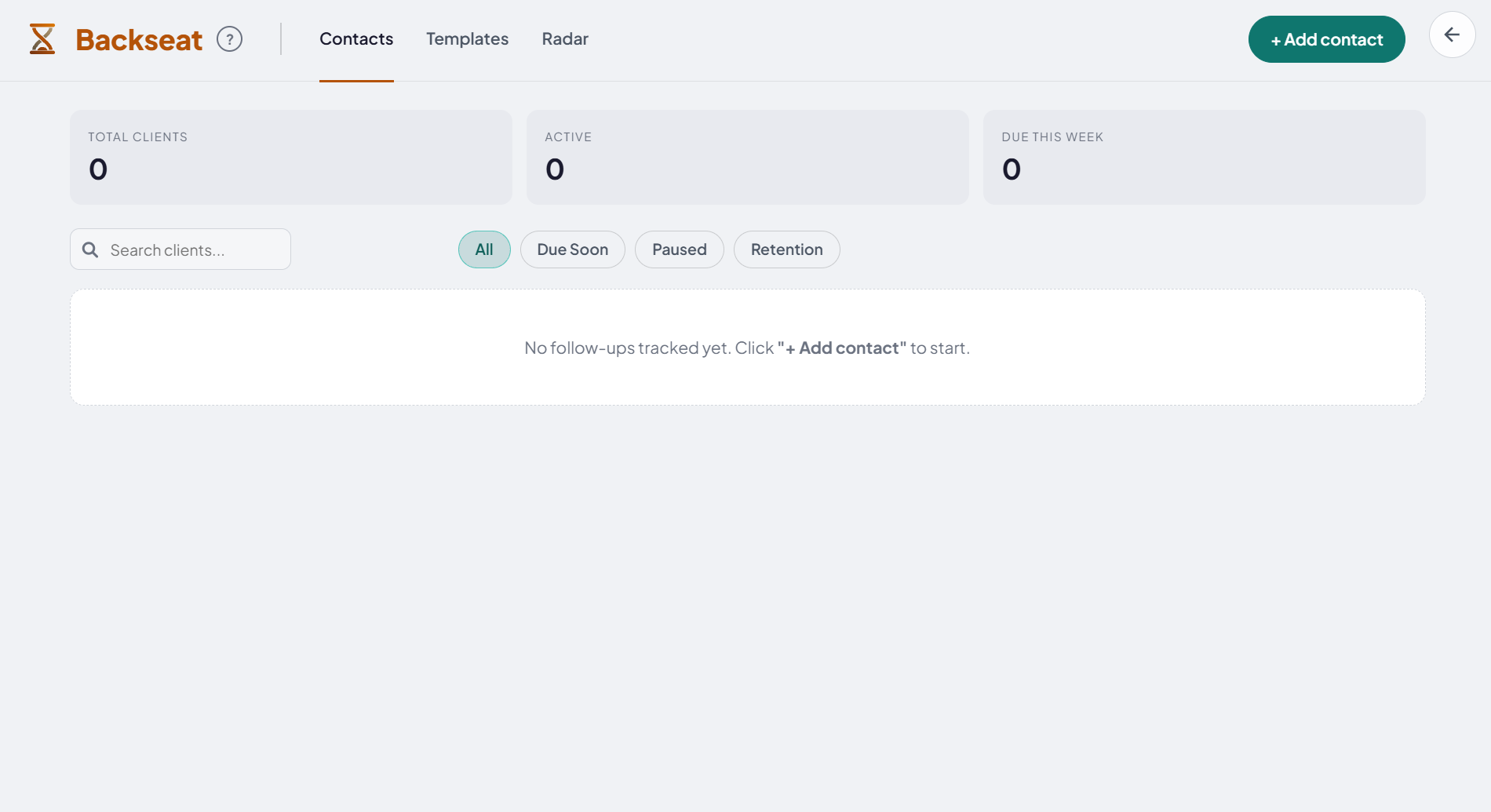
Click Backseat in the top bar. On the Contacts tab, click + Add contact.
- 2
Fill in the client
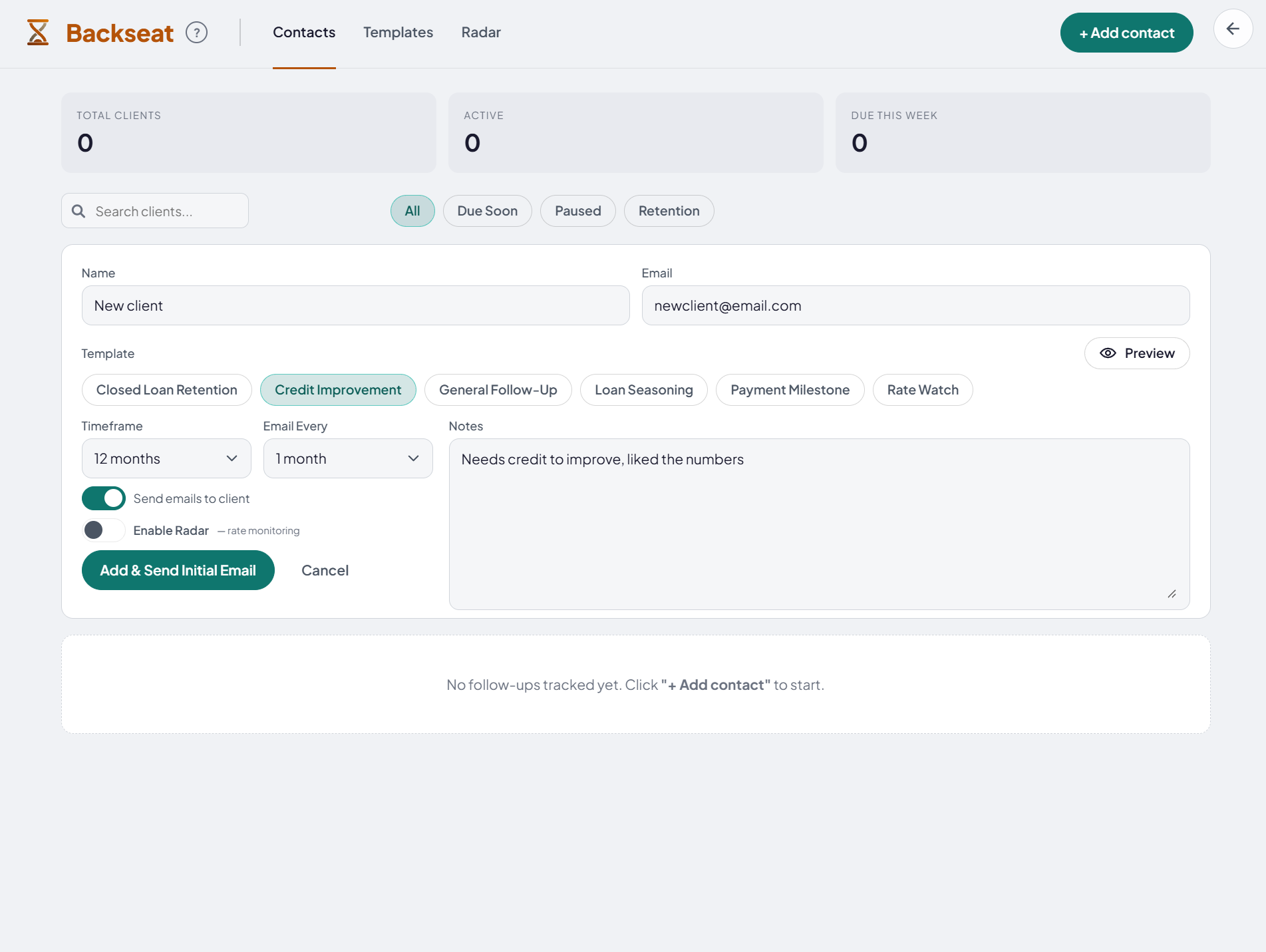
Type their Name and Email. Under Template, pick the emails they get, like Closed Loan Retention or Rate Watch. Click Preview to read the email first.
- 3
Pick how long and how often
Timeframe is how long Backseat stays in touch. Email Every is how often an email goes out. Add Notes so you remember why you added them.
- 4
Start it
Leave Send emails to client on, unless you only want Rate Radar. Turn on Enable Radar to watch rates for them too. Click Add & Send Initial Email.
- 5
Check the timeline
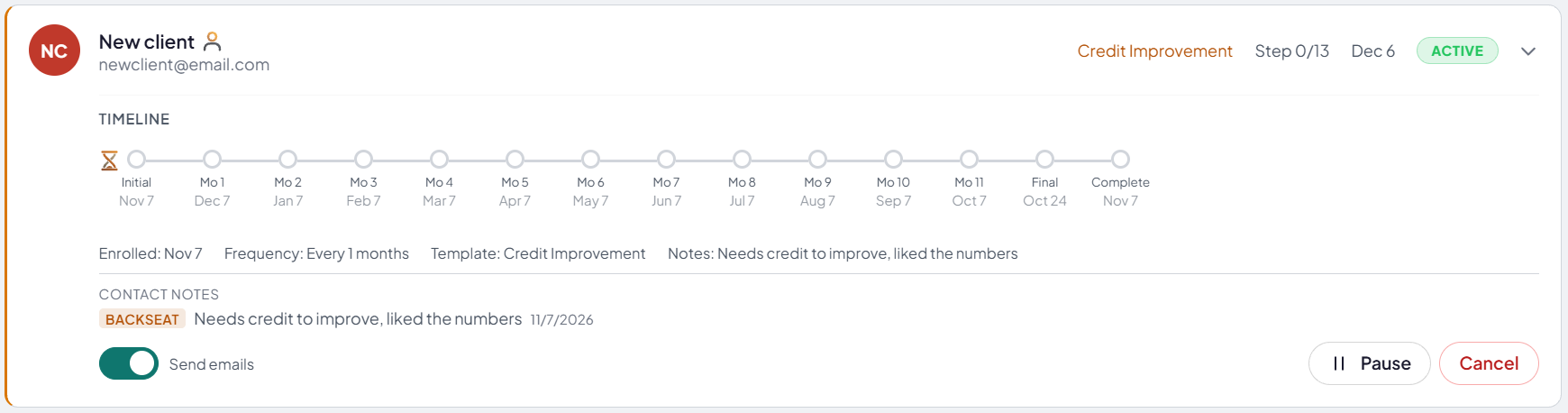
The client now shows on your list. Click the arrow on their row to see the date of every email. Use Pause or Cancel any time.
Good to know
- Want your own words? Open the Templates tab and click + New Template.
- Your notes also save to the client's contact notes.
- Use All, Due Soon, Paused and Retention to sort your list.
Links
Tell us which step you're on.
Email us what you see on your screen, and we'll get you moving again.