
Set up Rate Radar for a client
Rate Radar watches rates for a Backseat client and lets you know when they hit your target.
Before you start
- A client you are adding to Backseat.
Steps
- 1
Turn on Radar
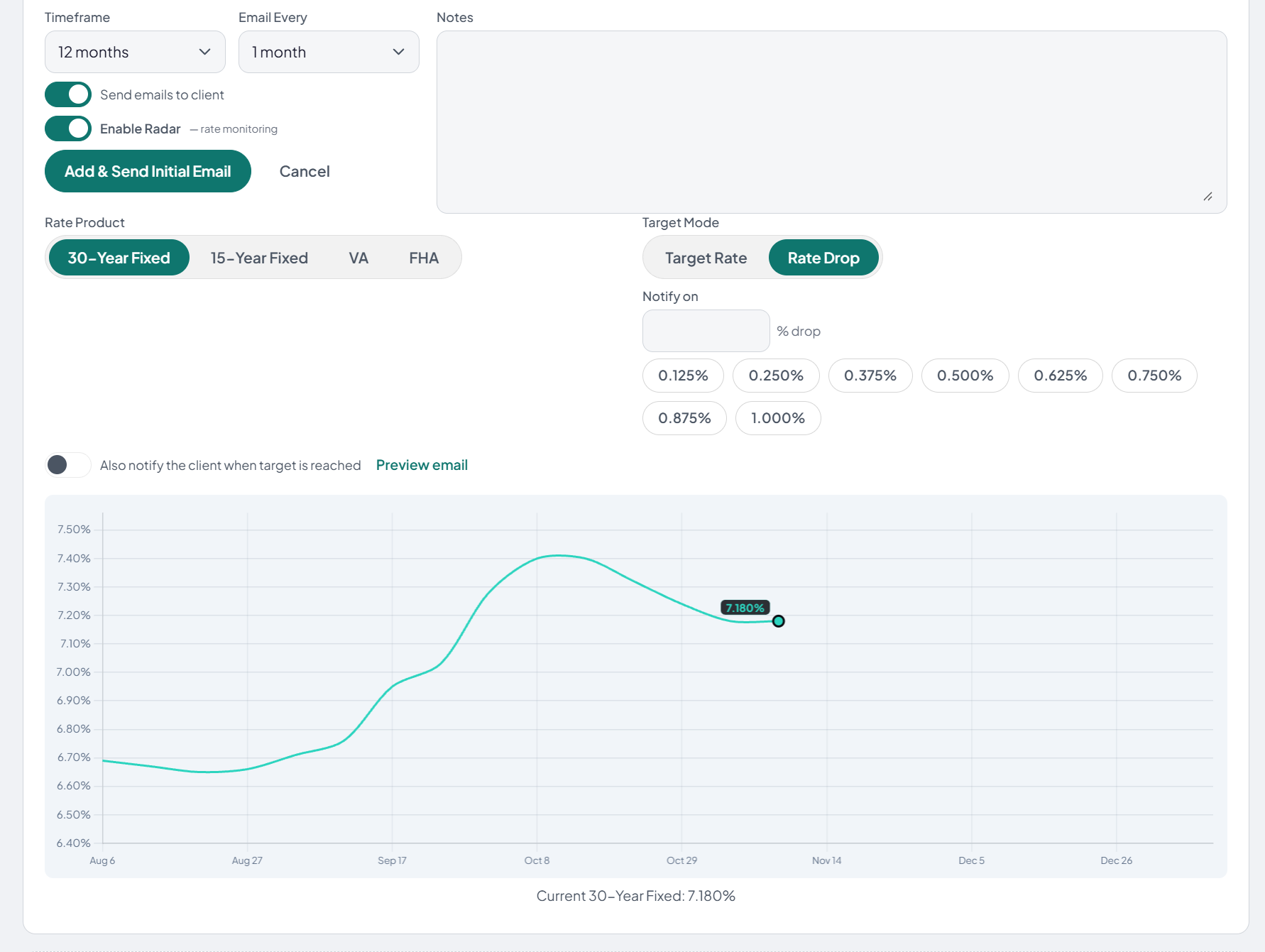
While you add a client in Backseat, turn on Enable Radar. Only want Radar? Turn off Send emails to client, and they get no Backseat emails. More choices show up under the form.
- 2
Pick the loan type
Under Rate Product, pick 30-Year Fixed, 15-Year Fixed, VA or FHA.
- 3
Pick your target
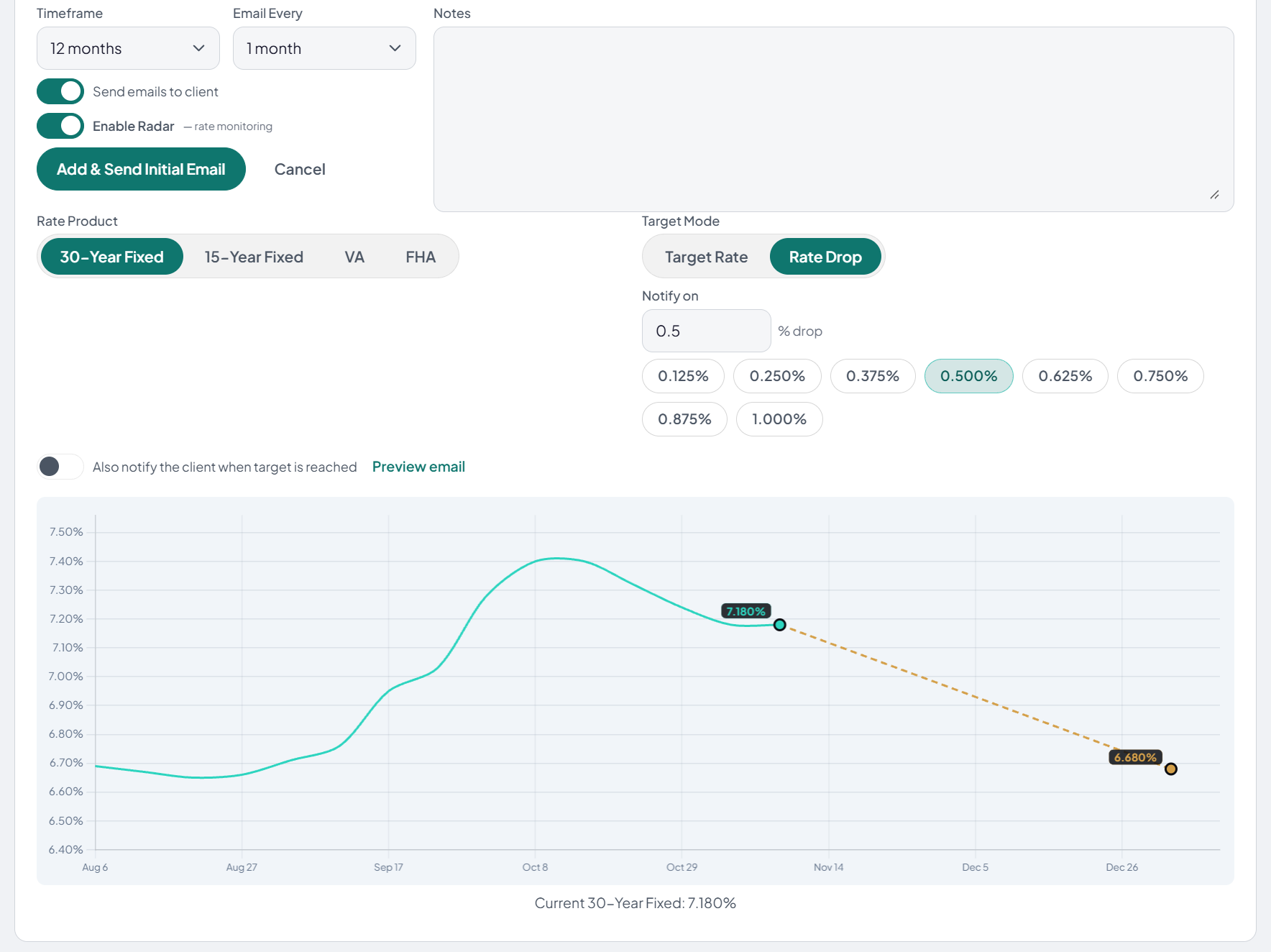
Under Target Mode, pick Target Rate to watch for one rate, or Rate Drop to watch for a drop from today. For a drop, type it in Notify on or click a chip like 0.500%.
- 4
Check the chart
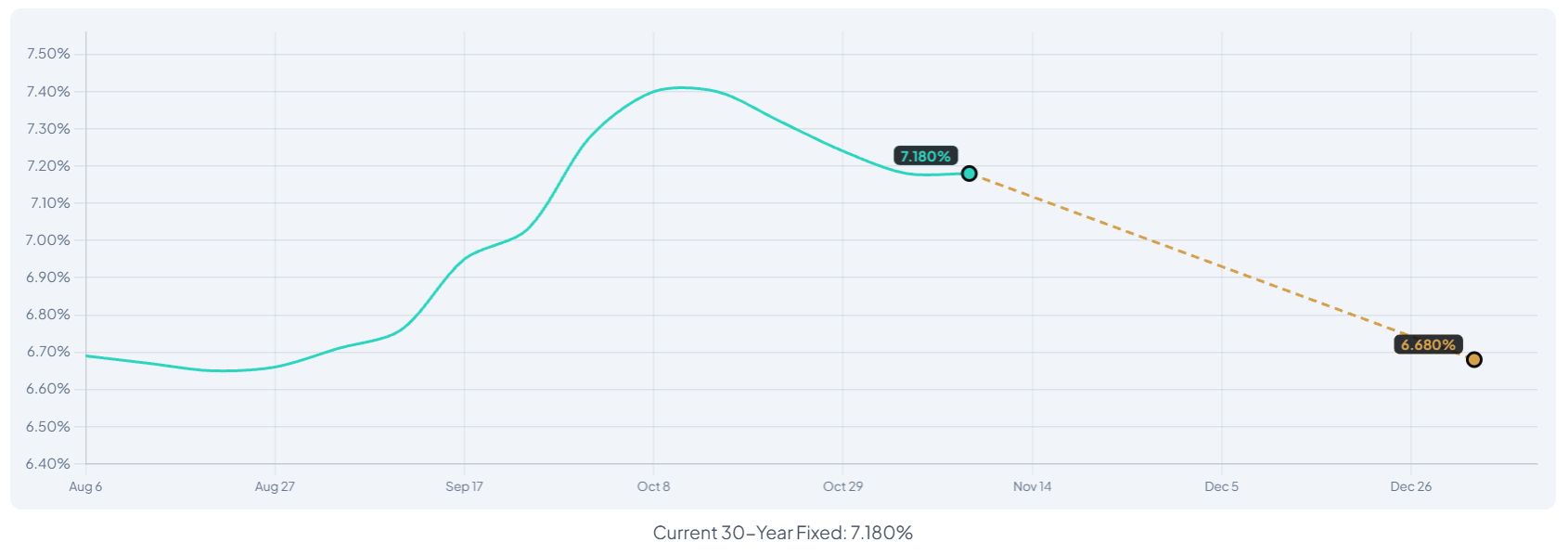
The chart shows rates over the last few months. The dotted line runs from today's rate to your target.
- 5
Tell the client too
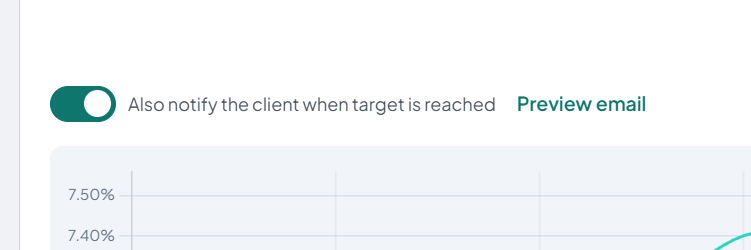
This one is optional. Turn on Also notify the client when target is reached to email them when it happens. Click Preview email to read it first.
- 6
Save it
Click Add & Send Initial Email. This adds the client to Backseat with Radar on.
- 7
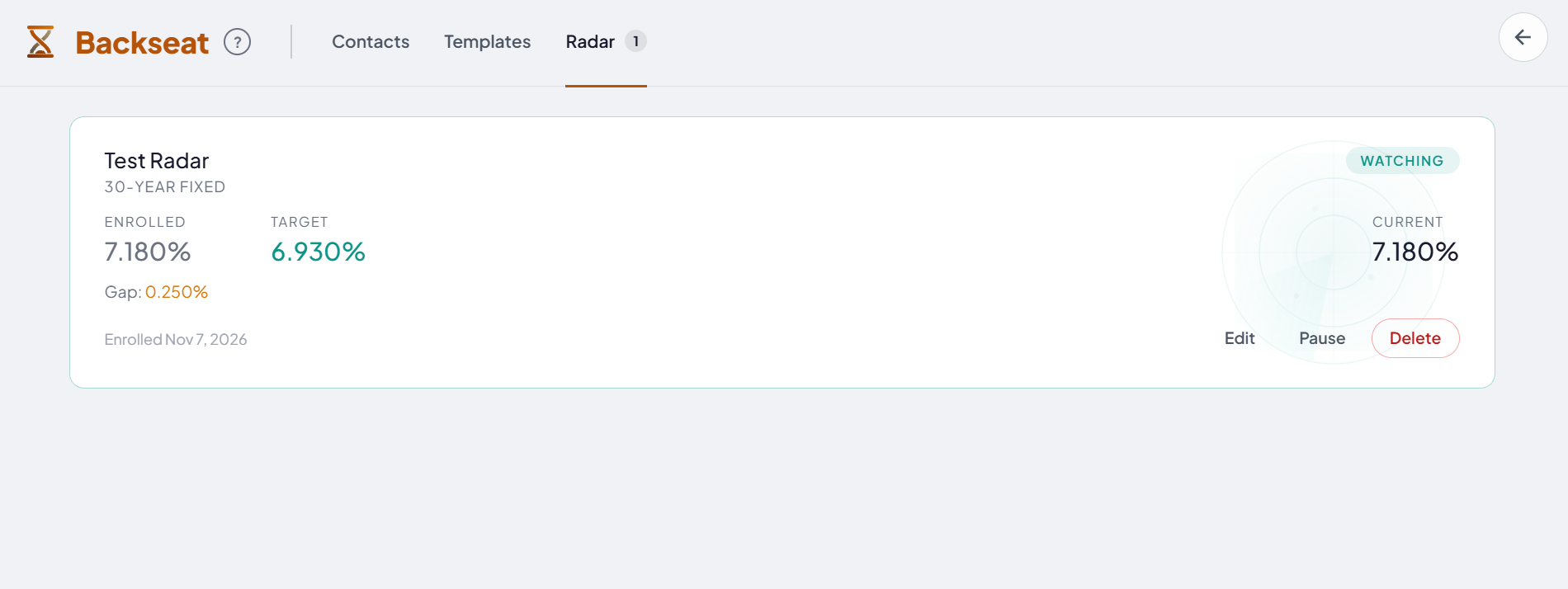
Watch it on the Radar tab
Open the Radar tab. Each card shows the rate when you started, your target and the gap. Use Edit, Pause or Delete to change it.
Good to know
- You get notified when the rate hits your target. The client only hears about it if you turn on Also notify the client.
- Radar works on Backseat clients only. Every Radar client is also in Backseat.
- The number on the Radar tab shows how many clients you are watching.
Links
Tell us which step you're on.
Email us what you see on your screen, and we'll get you moving again.