
Send a Loan Proposal from Blueprint
Build a Loan Proposal, check the live preview, and send it to your borrower by email, text or both.
Before you start
- Your borrower's name and email, plus their mobile number if you will text it.
- The loan you quoted: amount, rate and term.
- To send by text, your phone has to be connected to NEXUS.
Steps
- 1
Open Blueprint
Click the Blueprint node on your home screen. It opens on the Proposals tab.

- 2
Pick a template
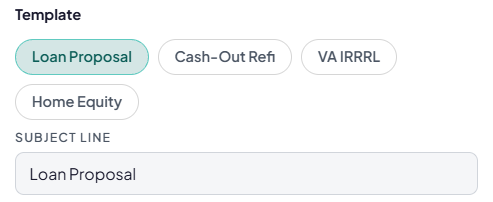
Under Template, click the one that fits: Loan Proposal, Cash-Out Refi, VA IRRRL or Home Equity. Change the Subject Line if you want.
- 3
Add your borrower
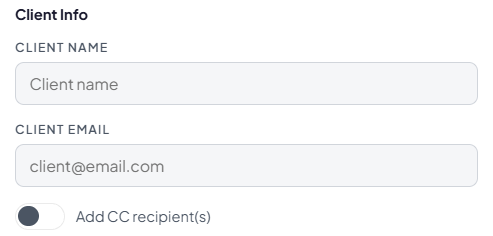
Type their name in Client Name and their email in Client Email. To send a copy to someone else, turn on Add CC recipient(s).
- 4
Enter the loan
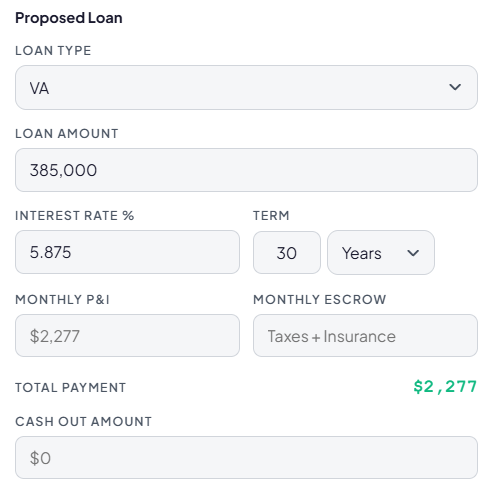
Fill in Loan Type, Loan Amount, Interest Rate % and Term. Monthly P&I fills in by itself. Add Monthly Escrow for taxes and insurance, and Cash Out Amount if they are taking cash out.
- 5
Choose what they see
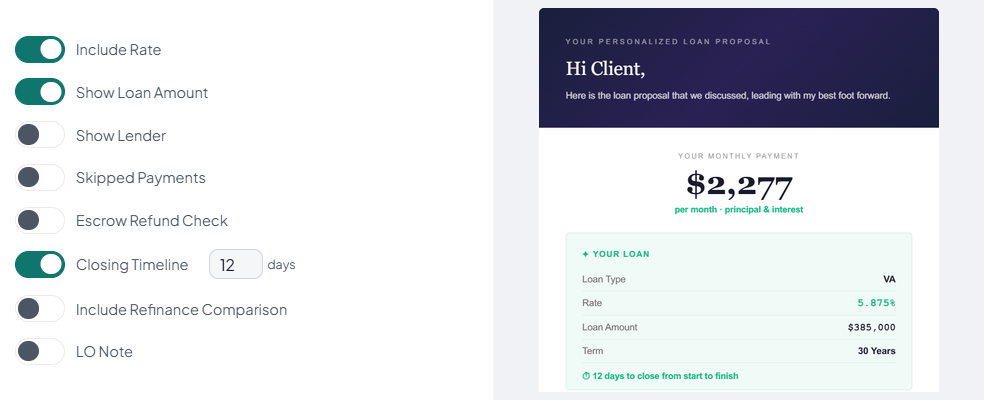
Use the switches to show or hide parts of the proposal, like Include Rate, Show Loan Amount or Closing Timeline. The Email Preview on the right changes as you go, so you see exactly what your borrower gets.
- 6
Pick how it goes out
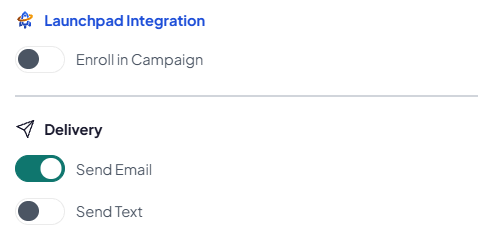
Scroll down to Delivery and turn on Send Email, Send Text, or both. For a text, type their mobile number in the box that shows up. To start a follow-up campaign too, turn on Enroll in Campaign and pick one.
- 7
Send it
Click the green send button at the top right. If Client Not Enrolled in Any Campaign pops up, click Continue to send anyway, or Enroll to go back and pick a campaign first.

Good to know
- Text to My Phone sends the proposal to your own phone, so you can text it to your borrower from your personal number.
- History shows the proposals you sent before.
- Show Company Logo only works after your admin adds a company logo.
Tell us which step you're on.
Email us what you see on your screen, and we'll get you moving again.