
Calendar
Book an appointment for a client
Book time for a client from your Calendar or right from their contact.
Steps
- 1
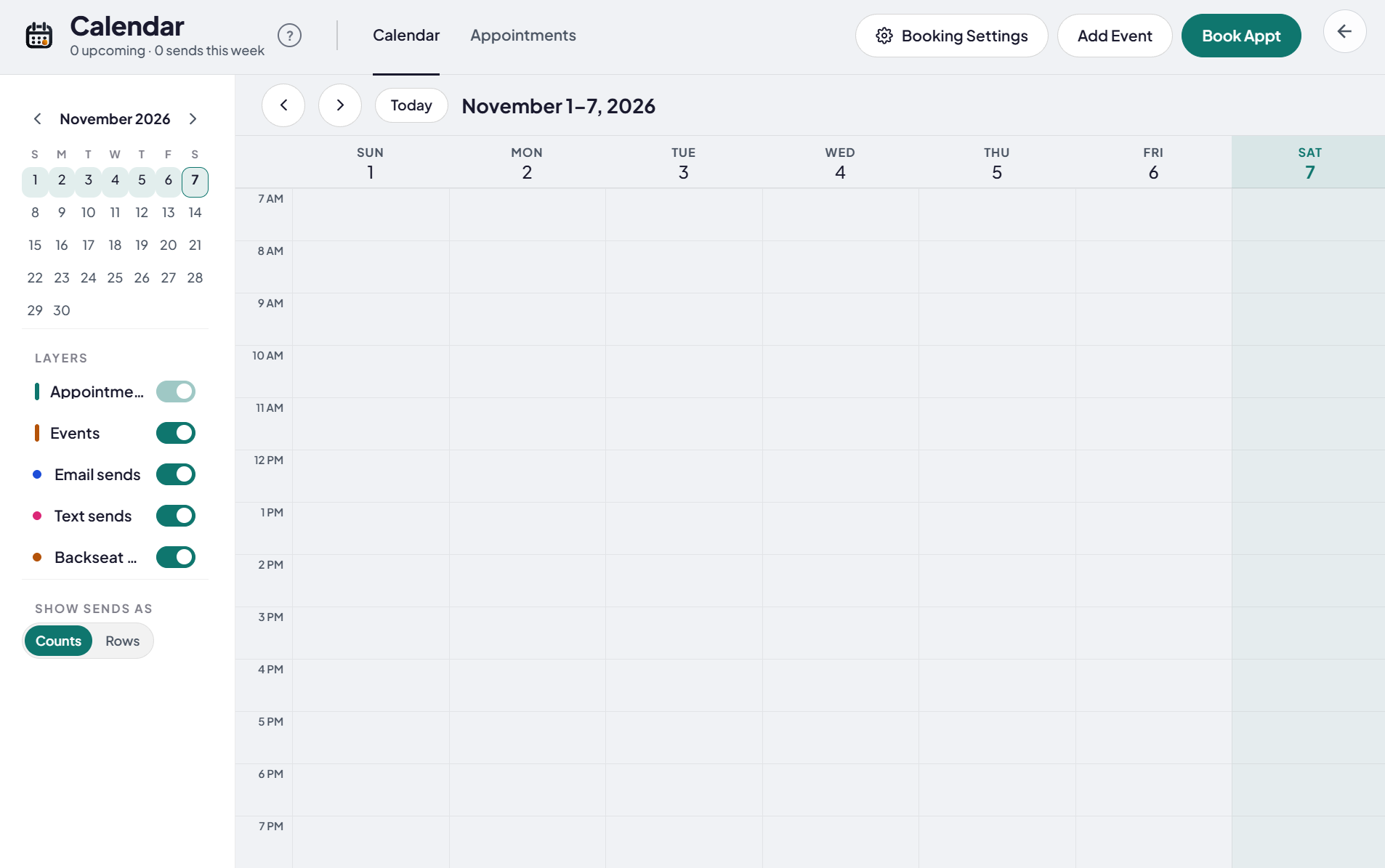
Start from Calendar
In Calendar, click Book Appt.
- 2
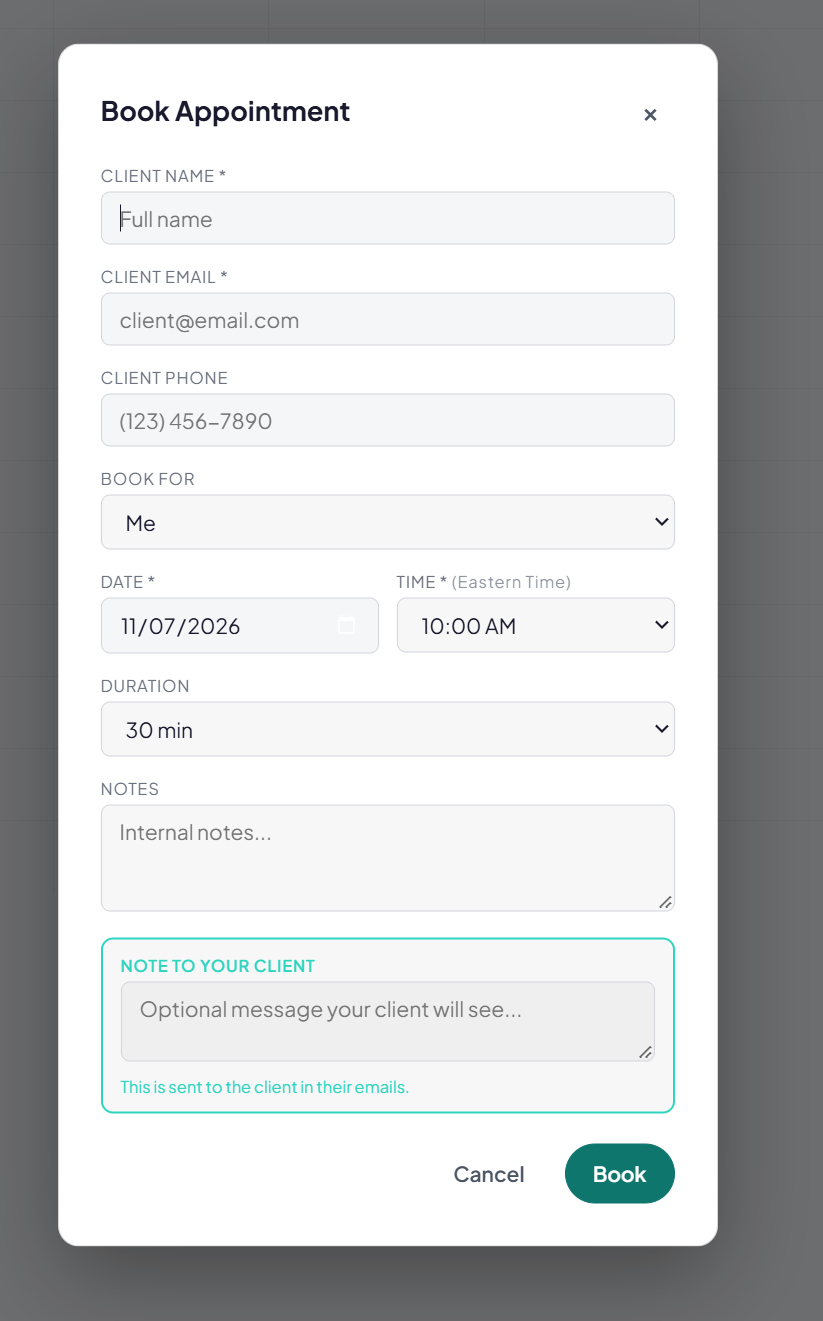
Add the client
Fill in Client Name, Client Email and Client Phone.
- 3
Pick the day and time
Leave Book For on Me, or pick someone on your team, like an LO or your team lead. Who you can pick depends on your company's settings. Then pick the Date, Time and Duration.
- 4
Add notes
Notes are just for you. Note to your client shows up in their emails.
- 5
Book it
Click Book.
- 6
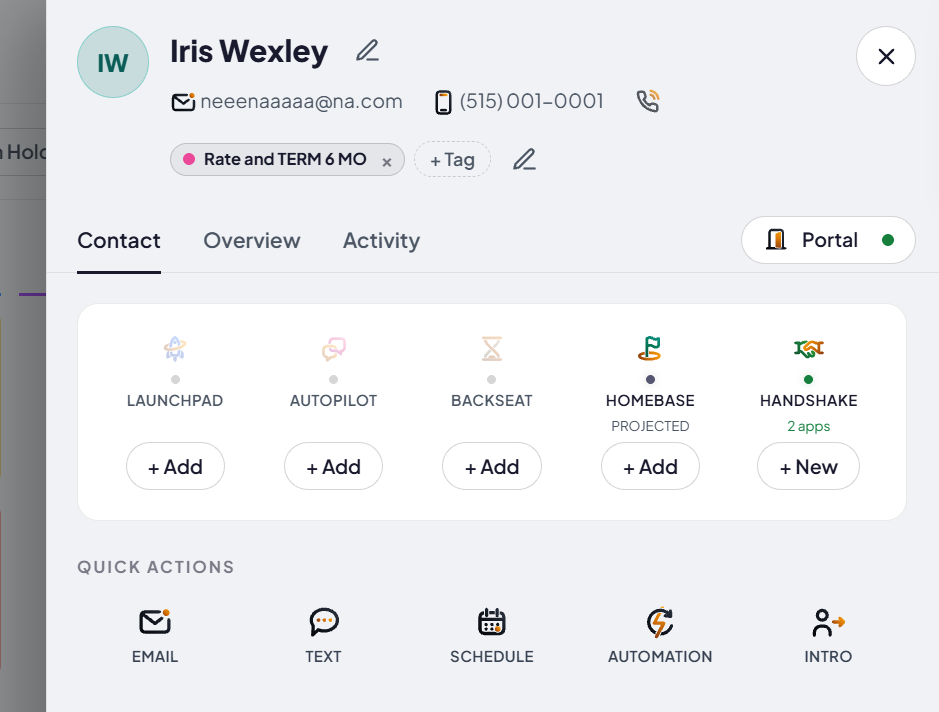
Or start from a contact
Open the contact. Under Quick Actions, click Schedule. Their name, email and phone are already filled in.
- 7
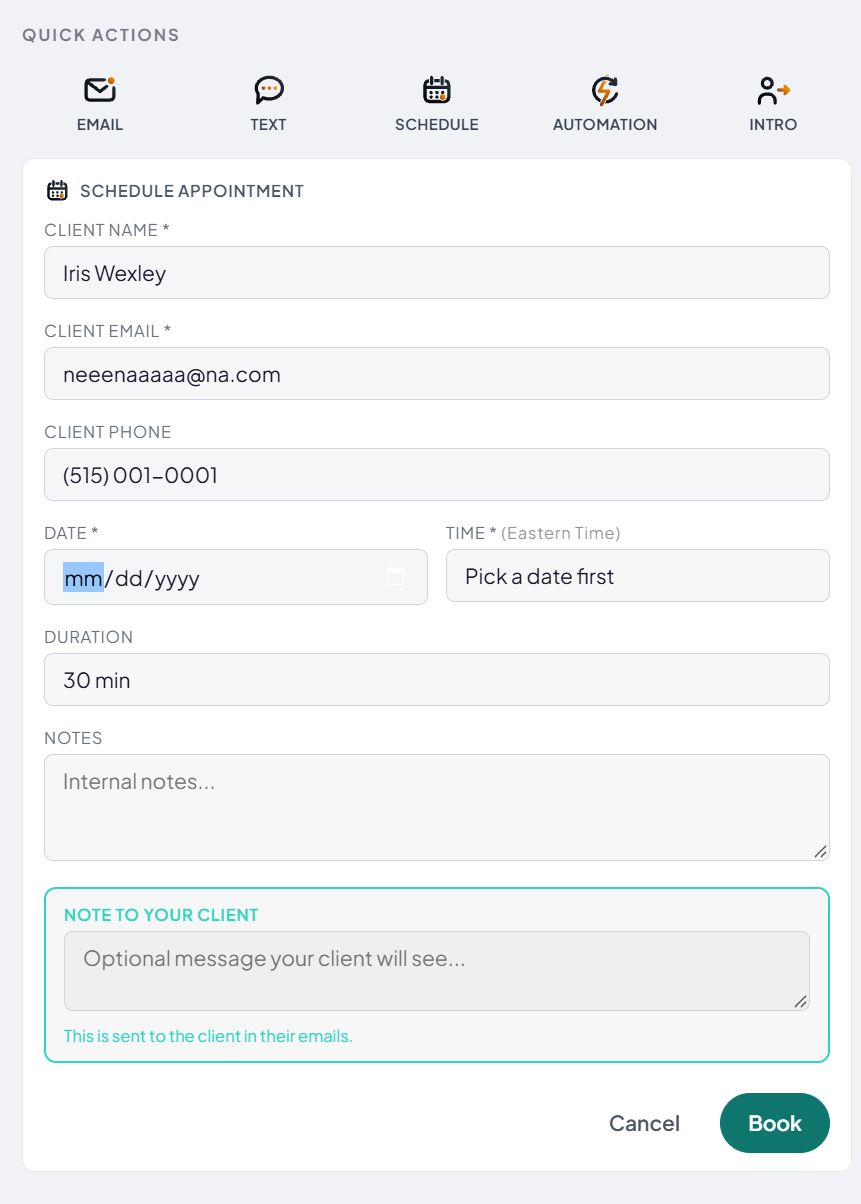
Pick a date, then book
Pick the Date first, then the Time. Add notes if you want, then click Book.
Good to know
- Times show in your time zone.
Links
Still stuck?
Tell us which step you're on.
Email us what you see on your screen, and we'll get you moving again.
Keep going
Make your own Drafting Wheel sliceSave your own prompt as a slice on the wheel. Pick it on a client, and NEXUS writes the email or text for you.Meet your top barThe top bar holds your tools. Here is what each icon does and how to move them around.Set up your Calendar and booking pageSee your week, check your appointments and set up how clients book time with you.