
Make your own Drafting Wheel slice
Save your own prompt as a slice on the wheel. Pick it on a client, and NEXUS writes the email or text for you.
Before you start
- A contact to try your slice on.
- Any prompt you already use, like one saved for ChatGPT (optional).
Steps
- 1
Open the Drafting Wheel
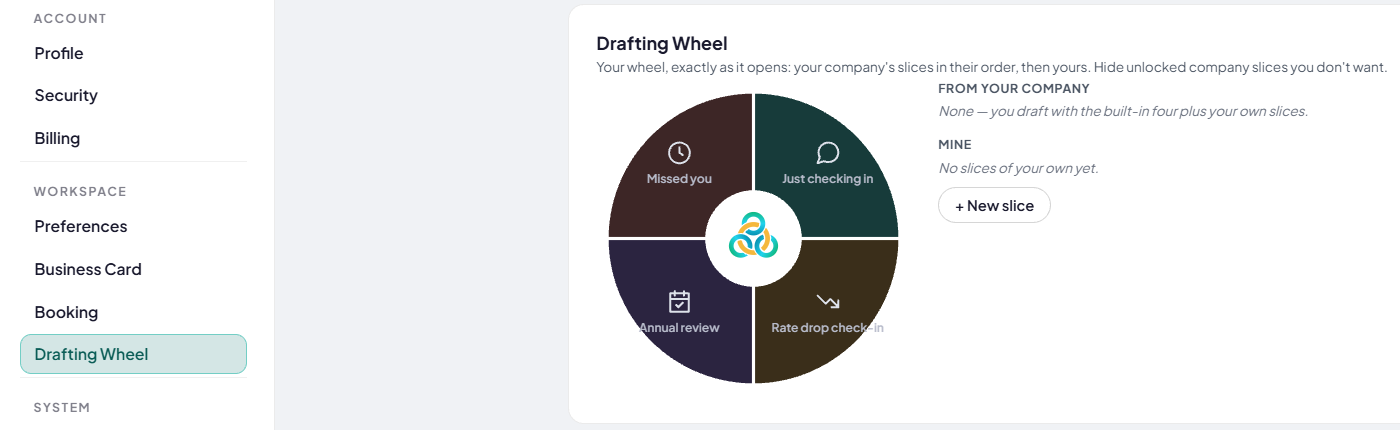
Go to Settings › My Settings › Drafting Wheel. The wheel shows your company's slices first, then yours. Click + New slice.
- 2
Name it and pick a look
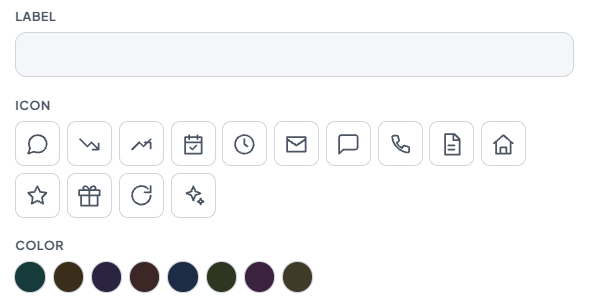
Type a short name in Label. Pick an Icon and a Color so you can spot it fast on the wheel.
- 3
Pick a goal and a tone
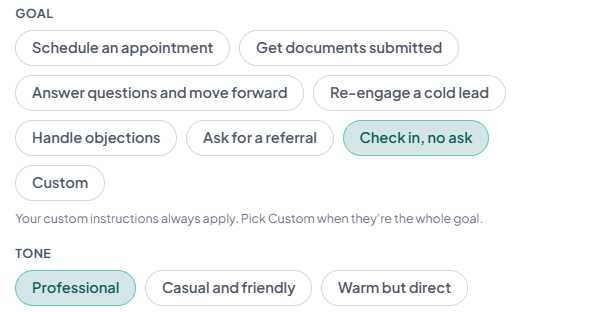
Under Goal, pick what you want the message to do, like Schedule an appointment or Ask for a referral. Then pick a Tone.
- 4
Add your own words
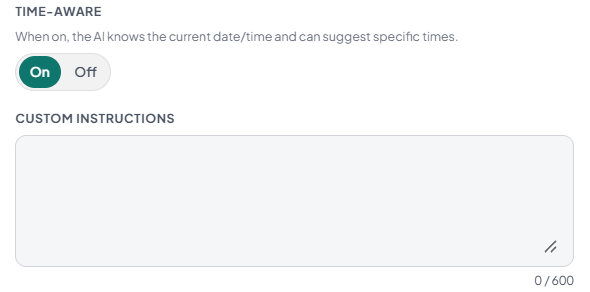
Type your own rules in Custom Instructions, up to 600 characters. If you keep a prompt saved for ChatGPT, paste it here. Leave Time-Aware on so it can suggest real days and times.
- 5
Pick email, text or both
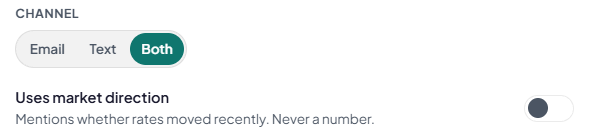
Under Channel, pick Email, Text or Both. Turn on Uses market direction if you want it to say whether rates moved lately.
- 6
Try it, then save
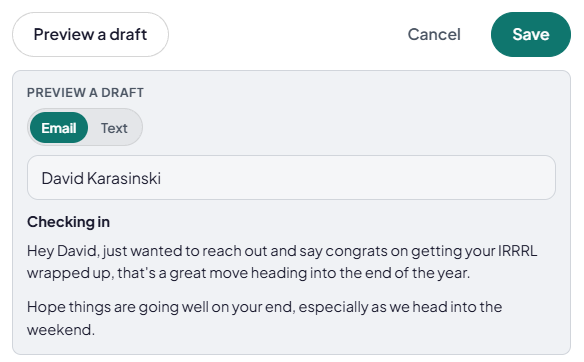
Click Preview a draft, pick Email or Text, and search a contact. You see the draft it would write for them, and nothing gets sent. When it looks right, click Save.
- 7
Use it on a client
Open a contact. Under Quick Actions, click Email or Text.

- 8
Pick your slice
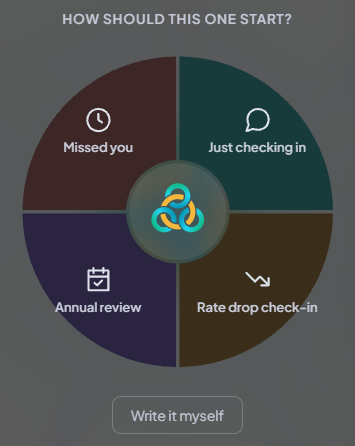
The wheel pops up. Click your slice, and NEXUS writes the draft for that client using their info. Click Write it myself to skip it.
Good to know
- Your custom instructions always apply. Pick Custom under Goal when your words are the whole goal.
- Uses market direction never puts a rate number in the message.
- You can hide company slices you don't want, unless your company locked them.
Tell us which step you're on.
Email us what you see on your screen, and we'll get you moving again.